How to Connect Ghost CMS to n8n: Complete Integration Guide

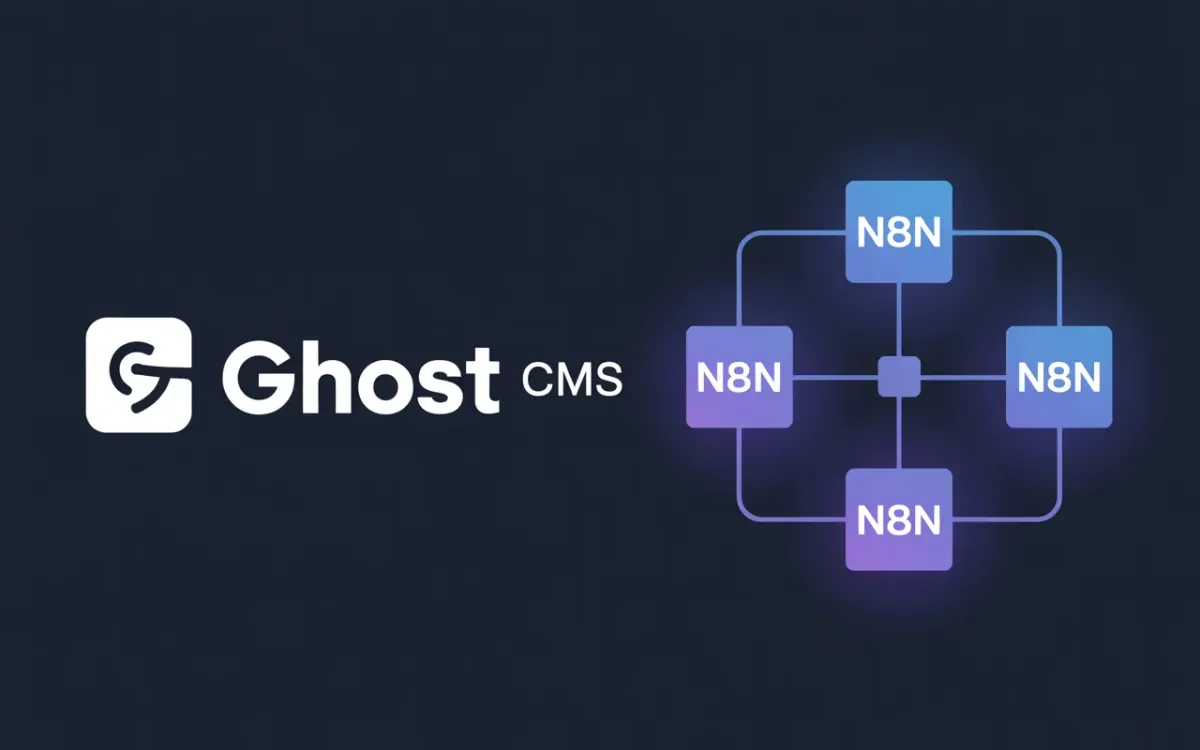
Quick answer: To connect Ghost CMS to n8n, create a Custom Integration in Ghost (Settings → Integrations), copy the Admin API key, then add Ghost credentials in n8n. You can then create, update, delete, and fetch posts automatically — no code required.
If you run a Ghost blog and still publish posts manually, you're leaving a lot of time on the table. n8n — the open-source workflow automation tool — has a native Ghost node that lets you connect your Ghost site to hundreds of other apps without writing a single line of backend code.
The Ghost forum is full of people asking how to auto-post to social media when they publish, sync subscribers to a CRM, or trigger email sequences on new content. n8n handles all of that. This guide walks through every step — from setting up credentials to building real workflows.
How do I connect Ghost CMS to n8n?
The connection takes about two minutes once you know where to look. Ghost requires a Custom Integration to generate API credentials. Here's exactly how:
- Open your Ghost Admin dashboard.
- Go to Settings → Integrations → Add custom integration.
- Give it a name like "n8n Automation" and click Create.
- Copy the Admin API Key and note your API URL (e.g.,
https://yourblog.com). - In n8n, go to Credentials → New → Ghost API.
- Paste the Admin API Key and your site URL. Save.
That's it — n8n can now talk to your Ghost site. The Content API key (read-only) is also available in the same integration screen if you only need to fetch posts without making changes.
One tip from the n8n community forums: make sure you're using the Admin API key (not the Content API key) when you want to create or update posts. The Content key only allows reads, and using it for write operations throws a confusing authorization error.
What actions does the Ghost node support in n8n?
n8n's built-in Ghost node covers the most common operations:
| API Type | Action | Use Case |
|---|---|---|
| Admin API | Create Post | Publish AI-generated or scheduled content |
| Admin API | Update Post | Edit or re-publish existing posts |
| Admin API | Delete Post | Remove posts based on conditions |
| Admin API | Get Post | Fetch a specific post by ID |
| Admin API | Get All Posts | Pull entire post library for processing |
| Content API | Get Post | Read post data publicly |
| Content API | Get All Posts | Build read-only integrations |
If you need something not on this list — like managing tags, members, or webhooks — you can use n8n's HTTP Request node with your Ghost credentials to hit the full Ghost Admin API directly.
How do I trigger a workflow when a post is published in Ghost?
Ghost supports webhooks natively, and n8n has a Webhook node that can receive them. Set it up like this:
- In n8n, create a new workflow and add a Webhook node as the trigger. Copy the webhook URL it generates.
- In Ghost Admin, go to Settings → Integrations → Add custom integration.
- Scroll to the Webhooks section within that integration.
- Click Add webhook, select the event (e.g.,
post.published), and paste the n8n URL.
Ghost fires webhooks for these events:
post.published— fires immediately when a post goes livepost.added— when a draft is createdpost.edited— any edit, draft or publishedpost.deleted— on post deletionmember.added— new subscriber signupmember.updated— subscriber plan changesite.changed— any settings or content change
This is the right trigger for social media posting workflows. Ghost publishes → n8n receives the webhook → posts to X, LinkedIn, Bluesky, or wherever.
What are the most useful Ghost + n8n workflow examples?
Here's what people actually build once they connect the two:
AI content publishing. A schedule trigger fires every 12 hours, an OpenAI or Claude node generates a blog post with title and meta description, a Code node formats it as a Ghost-compatible payload, and an HTTP Request node publishes it via the Admin API. Pairing this with proper email delivery means subscribers get notified automatically too.
Cross-posting to social media. Ghost webhook (post.published) → n8n receives it → extracts title, excerpt, and URL → posts a thread to X and a card to LinkedIn. Takes about 15 minutes to build.
CRM sync for new members. Ghost fires member.added → n8n pushes the email and name to HubSpot, Airtable, or a Google Sheet. Useful for tracking paid members separately from free subscribers.
Backup on delete. Before a post.deleted webhook completes, n8n fetches the full post content via the Get Post action and saves it to Notion or Google Drive. This saves you from the "I accidentally deleted a post" panic that the Ghost forum sees regularly.
SEO indexing on publish. Post publishes → n8n submits the URL to Google Indexing API and IndexNow (covers Bing, Yandex) in the same workflow. Your posts get crawled in minutes, not days. Learn more about how Ghost handles sitemaps to complement this.
How do I publish a post to Ghost using n8n's HTTP Request node?
When you need more control than the Ghost node gives — like setting feature images, tags, or authors — use the HTTP Request node directly. Ghost's Admin API accepts JSON and returns detailed responses.
Here's the request structure:
{
  "posts": [
    {
      "title": "Your Post Title",
      "html": "<p>Post content here</p>",
      "status": "published",
      "tags": [{"name": "your-tag"}],
      "feature_image": "https://yoursite.com/image.jpg",
      "meta_title": "SEO title (50-60 chars)",
      "meta_description": "Meta description (140-160 chars)"
    }
  ]
}
In n8n's HTTP Request node:
- Method: POST
- URL:
https://yourblog.com/ghost/api/admin/posts/?source=html - Auth: Predefined Credential Type → Ghost API (your saved credential auto-handles the JWT)
- Body: JSON with the posts array above
The ?source=html parameter tells Ghost to accept raw HTML instead of its default Mobiledoc format. Without it, your HTML tags will appear as plain text in the post.
Does n8n work with Ghost Pro (managed hosting)?
Yes. Ghost Pro and self-hosted Ghost instances use the same API. The only difference is your API URL — on Ghost Pro it's your custom domain (e.g., https://yourblog.ghost.io), and on self-hosted it's whatever you've configured.
The custom integration setup (Settings → Integrations) works identically on both. You don't need SSH access or server permissions. Self-hosted Ghost on Ubuntu and managed Ghost Pro behave the same from n8n's perspective.
Can n8n replace Ghost's built-in newsletter sending?
Not directly. Ghost's newsletter system uses Mailgun or a custom SMTP server to send emails to members on post publish — that's a core Ghost feature. n8n doesn't replicate that natively.
What n8n can do is trigger emails through external services after a post.published webhook. For example: Ghost publishes → n8n sends a notification via Resend, Postmark, or AWS SES to a list stored elsewhere. This is useful if you want to send to segments that Ghost's membership tiers don't cover. For full newsletter setup options, see the guide on Ghost email alternatives.
What's the difference between the Ghost node and using the HTTP Request node?
| Feature | Ghost Node | HTTP Request Node |
|---|---|---|
| Setup effort | Minimal (UI-driven) | Manual (headers, auth, JSON) |
| Actions supported | 7 (post CRUD) | Full API (tags, members, images, more) |
| JWT handling | Automatic | Manual or via credential |
| Best for | Standard post workflows | Custom or advanced operations |
| Flexibility | Limited | Full Ghost API access |
Start with the Ghost node. Switch to HTTP Request when you need to access endpoints the node doesn't expose — like uploading images, managing members, or working with pages instead of posts.
Related Ghost Guides
- How to Use Amazon SES with Ghost CMS — set up transactional email and newsletters via SES
- Ghost CMS Mailgun Alternatives — other email providers that work with Ghost
- Add Full-Text Search to Ghost CMS — Algolia, Typesense, and Vellumine compared
- XML Sitemaps in Ghost — how Ghost generates sitemaps and how to optimize them
- Ghost SEO Hacks — practical tips to improve your Ghost blog's search rankings
- Ghost Installation on Ubuntu — full self-hosting setup guide
- Cache Ghost with Cloudflare — speed up your Ghost site with Cloudflare caching
Frequently Asked Questions
Does n8n have an official Ghost integration?
Yes. n8n ships a built-in Ghost node that supports both the Admin API and Content API. You'll find it by searching "Ghost" when adding a node to any workflow. It handles JWT authentication automatically using your stored credentials.
Can I use n8n with a self-hosted Ghost site?
Absolutely. Self-hosted Ghost on Ubuntu, DigitalOcean, or any VPS works exactly the same as Ghost Pro. Set your API URL to your domain and generate a Custom Integration key from Settings → Integrations.
Do I need to write code to automate Ghost with n8n?
No. The Ghost node and Webhook trigger require no code at all. For advanced use cases — like formatting JSON payloads or transforming data — n8n's Code node uses JavaScript, but it's optional.
Can n8n post to Ghost on a schedule?
Yes. Use n8n's Schedule Trigger node as the starting point. Set your interval (daily, weekly, hourly) and chain it with content generation nodes (OpenAI, Claude) and the Ghost node to publish automatically at any frequency.
What happens if my n8n workflow fails during a Ghost post publish?
n8n logs the error and stops the workflow. The post won't be partially published — Ghost's API is transactional for post creation. You can enable n8n's error workflow feature to send yourself an alert if a critical workflow fails.
Is there a webhook for when someone subscribes to my Ghost newsletter?
Yes. Ghost fires a member.added webhook whenever a new subscriber signs up. In n8n, set up a Webhook trigger and configure it in Ghost's Custom Integration webhooks section. You can then push new subscriber data to a CRM, spreadsheet, or Slack channel.
Can I use n8n to update existing Ghost posts automatically?
Yes. The Ghost node's Update Post action takes a post ID and accepts any field you want to change — title, HTML content, feature image, tags, status. You can use the Get All Posts action first to find posts matching certain criteria, then loop through and update them.
Why does the Ghost node throw an "authorization error" with my API key?
This almost always means you're using the Content API key (read-only) instead of the Admin API key. Go back to your Custom Integration in Ghost Admin and copy the Admin API Key specifically. The Content API key looks similar but only works for reading data.