Ghost CMS Admin Login Not Working After URL Change: Complete Fix Guide

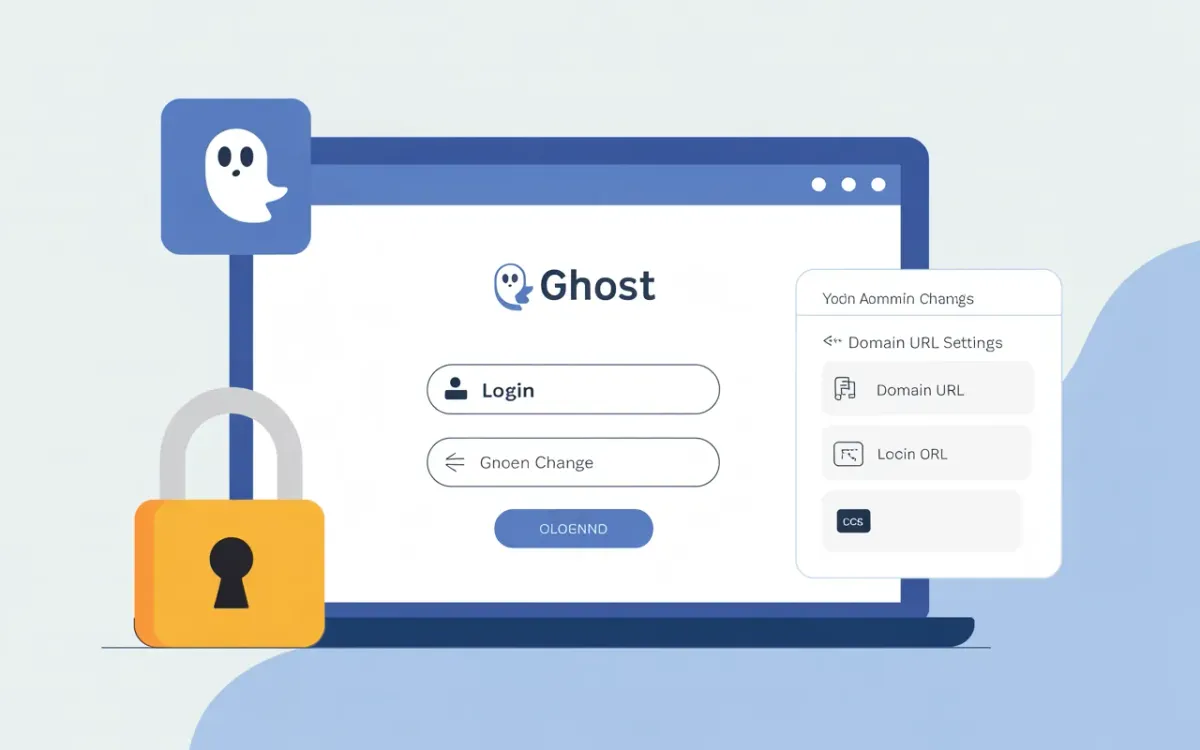
Quick answer: When Ghost CMS admin login stops working after a URL change, the fix is to clear browser cookies for the old domain, ensure your config.production.json has the correct url value, then run ghost restart. Docker users must update the url environment variable and recreate the container.
You changed your Ghost domain — maybe moved from a temporary subdomain to a real one, or migrated to a new server — and now /ghost just won't let you in. The admin panel shows a blank screen, a redirect loop, or silently fails.
This is one of the most common Ghost self-hosting headaches. The good news: there are only four real causes, and they all have a clean fix. This guide covers each scenario — ghost-cli installs, Docker setups, and Cloudflare-proxied sites — so you can get back into your admin without guessing.
Why Does Changing the URL Break Ghost Admin?
Ghost ties authentication cookies to the domain set in its configuration. When you change the URL, three things happen that can each break admin access independently:
- Browser cookies become invalid. Your session token was issued for
old-domain.com. The browser won't send it tonew-domain.com, so Ghost sees you as unauthenticated on every request. - Ghost's config still points to the old URL. If
config.production.json(or the Dockerurlenv var) wasn't updated, Ghost serves assets and API requests from the wrong origin — causing CORS failures and blank admin screens. - SSL certificate mismatch. Ghost admin loads JavaScript from your domain over HTTPS. A certificate that doesn't cover the new domain will block those requests silently in the browser console.
Knowing which one (or which combination) hit you narrows the fix instantly.
How Do I Fix Ghost Admin Login After a URL Change? (Standard ghost-cli Install)
For ghost-cli installs on Ubuntu or Debian, this is the standard fix sequence. Run it in order — each step resolves one of the failure modes above.
Step 1: Clear browser cookies for both the old and new domain. In Chrome, go to Settings → Privacy → Cookies → See all cookies, then delete everything for your old domain. Or open an Incognito window and try https://your-new-domain.com/ghost immediately — if that loads, cookies were the only issue.
Step 2: Update the URL in Ghost config.
cd /var/www/ghost
ghost config url https://your-new-domain.com
ghost restart
This rewrites the url key in config.production.json. Alternatively, edit the file directly:
{
  "url": "https://your-new-domain.com",
  "database": { ... },
  "mail": { ... }
}
After saving, always run ghost restart — Ghost won't pick up config changes without it. For more detail on the full URL migration process, see the step-by-step Ghost URL update guide.
Step 3: Renew SSL for the new domain.
ghost setup sslghost-cli will provision a new Let's Encrypt certificate for the domain in your config. If ghost setup ssl errors, check that your DNS A record points to the server and port 80 is open.
How Do I Fix Ghost Admin Login After URL Change in Docker?
Docker Ghost users face one extra wrinkle: the url is set as an environment variable in docker-compose.yml, and changing it requires recreating the container — not just restarting it.
Here's the corrected docker-compose.yml pattern:
services:
  ghost:
    image: ghost:alpine
    restart: unless-stopped
    environment:
      url: https://your-new-domain.com
      database__client: mysql
      database__connection__host: ghost_db
      database__connection__user: root
      database__connection__password: YOUR_DB_PASSWORD
      database__connection__database: ghost
    volumes:
      - /home/ghost/content:/var/lib/ghost/content
    depends_on:
      - ghost_db
After updating the url value, run:
docker compose down
docker compose up -d
Using docker compose restart is not enough — environment variable changes only take effect when the container is recreated. This is the most common mistake Docker users make with Ghost URL changes.
If you're running a rootless Docker setup (without root privileges), you may need to verify your user has the right permissions on the content volume before recreating:
sudo chown -R 1000:1000 /home/ghost/contentDoes Ghost Admin Need a Separate adminUrl Config?
Usually no — url covers both the public site and admin. But there's one case where adminUrl is relevant: when you want admin on a different subdomain (e.g., admin.yourdomain.com) from the public site.
If you've previously set an adminUrl in your config and then changed your main url, that stale adminUrl can cause the admin to redirect to the wrong place. Check your config.production.json:
{
  "url": "https://your-new-domain.com",
  "adminUrl": "https://your-new-domain.com"
}
If adminUrl still has the old domain, update it or delete the key entirely — Ghost will fall back to using url for admin.
What If Ghost Admin Still Won't Load After All the Config Fixes?
If you've updated the config and cleared cookies and admin still fails, check these in order:
| Symptom | Likely cause | Fix |
|---|---|---|
| Blank white screen at /ghost | JS assets loading from wrong origin (CORS) | Check browser console for mixed-content or CORS errors; verify url matches actual domain |
| Redirect loop on /ghost login | Session cookie domain mismatch | Clear all cookies for the domain, try incognito |
| 502 Bad Gateway on /ghost | Ghost process not running or wrong port | Run ghost status; see the 502 Bad Gateway Ghost fix |
| "Cannot read property of undefined" in console | Ghost loaded but API calls failing | Check Nginx/Cloudflare proxy config strips no headers Ghost needs |
| SSL error in browser | Certificate still for old domain | Run ghost setup ssl or re-issue cert manually |
If you're behind Cloudflare, also check that your SSL/TLS mode is set to "Full (strict)" — not "Flexible." Flexible mode causes redirect loops on Ghost admin. The Cloudflare SSL for Ghost guide covers this setup in full, and if you want to understand how Cloudflare caching interacts with Ghost, the Ghost Cloudflare caching guide is worth reading alongside this one.
How Do I Find My Ghost Admin Login URL?
Ghost admin is always at https://your-domain.com/ghost. There's no way to change this path — only the domain. If you're not sure what domain Ghost is configured for, run:
ghost config | grep urlOr check the file directly:
cat /var/www/ghost/config.production.json | grep urlFor a deeper dive, the guide to finding your Ghost login URL covers all installation types including Docker and Ghost(Pro).
How Do I Reset the Ghost Admin Password If I'm Locked Out?
If the admin page loads but you can't log in because you've forgotten your password — separate from the URL issue — use the "Forgot password" link on the login screen. Ghost will email a reset link to the address on your account.
If that email doesn't arrive (common with unconfigured mail), you can reset directly in MySQL. The Ghost admin password reset via MySQL guide walks through generating a bcrypt hash and updating it in the database without needing SMTP.
Related Ghost Guides
These guides cover common self-hosting problems that often come up alongside URL changes:
- How to Update the URL of Your Self-Hosted Ghost Site — the complete domain migration process from DNS to SSL
- Ghost Installation on Ubuntu: Step-by-Step Guide — fresh install reference if you're starting over on a new server
- 502 Bad Gateway: Ghost CMS Error Fixed — when the admin page can't be reached at all
Frequently Asked Questions
How do I reset my Ghost admin password?
Go to https://your-domain.com/ghost and click "Forgot password" on the login screen. Ghost emails a reset link to your account address. If email isn't configured, you can reset the password directly in MySQL using a bcrypt-hashed value — see the Ghost admin password reset guide for the exact SQL commands.
What are the default credentials for Ghost CMS?
Ghost has no default username or password. During installation, ghost-cli prompts you to create the first admin account. If you're locked out and never set a password, you'll need to use the MySQL reset method or re-run ghost setup if the database is empty.
How do I change the URL on Ghost?
For ghost-cli installs, run ghost config url https://new-domain.com then ghost restart. For Docker, update the url environment variable in docker-compose.yml, then run docker compose down && docker compose up -d. DNS and SSL must also point to the new domain before Ghost admin will work.
Why does Ghost admin show a blank screen after a URL change?
A blank Ghost admin screen after a URL change almost always means the JavaScript assets are loading from the old domain (CORS block) or the session cookie is for the wrong domain. Open browser DevTools (F12 → Console tab) to see the exact error. Update config.production.json with the new URL and clear your browser cookies for both domains.
Where is the Ghost CMS configuration file?
For ghost-cli installs on Ubuntu, the config file is at /var/www/ghost/config.production.json. For Docker, configuration is passed via environment variables in docker-compose.yml — there's no config.production.json inside the container by default. Run ghost config from the install directory to view all current settings.
How do I configure Ghost admin URL via environment variables?
Set the url environment variable to your full domain with protocol: url: https://your-domain.com. For an optional separate admin domain, add adminUrl: https://admin.your-domain.com. In Docker Compose, these go under the environment: key. Ghost translates double-underscore notation to nested config, so database__client: mysql maps to database.client in JSON config.
Can I use my own domain name with Ghost?
Yes. Self-hosted Ghost supports any domain — just point your DNS A record to the server IP, update the url in config, and run ghost setup ssl to provision a Let's Encrypt certificate. Ghost(Pro) supports custom domains on the Creator plan and above, configured in the Ghost admin portal settings.
Does ghost-cli automatically fix SSL when I change the URL?
No. Changing the URL in config doesn't automatically re-issue the SSL certificate. You need to run ghost setup ssl separately after updating the URL. Make sure port 80 is open on the server before running this — Let's Encrypt uses HTTP-01 challenge to verify domain ownership.
If you're on Ghost 5.x or 6.x and the domain change is part of a full server migration, running ghost doctor after the URL update will catch the most common configuration problems before they surface as login errors.